Discord integration enables sending of dice rolls automatically to a Discord channel or sending object links or details with a simple click.
Enable this feature in the lab settings and add your webhook URL(s). See below about creating webhook URLs. The main webhook URL must be added. All messages will be posted via this webhook. Optionally add a webhook URL for dice rolls to be sent to if you want them to be sent to a different channel.
Once enabled, the settings are stored locally in the current browser, so if you want to enable on multiple devices, you will need to ad the config to each device.
With the feature enabled and webhook URL(s) added, the integrations options are available in the following ways:
Send objects
There are a few options available when it comes to sending objects to Discord which appear under the Send to… context menu item on objects.
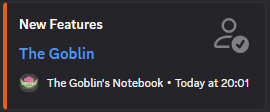
Send direct link
Available for objects that are shared. Sends a small card with a direct link to the object.
Send object
Sends the main notes content along with a link to the object.
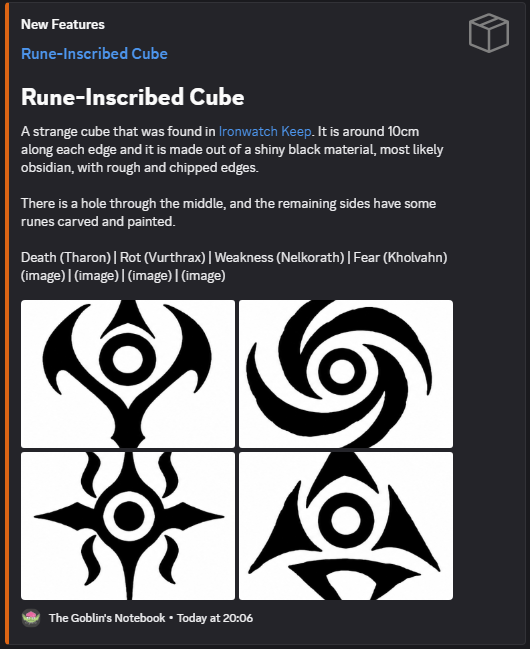
Note that although Discord also supports Markdown, their implementation is different from The Goblin’s Notebook so there may be formatting differences between your notes and how they appear in Discord.
Hidden notes sections will not be sent to Discord and object references will be turned into direct links if the object is shared, otherwise it will just show as plain text.
Up to 9 images will be attached to the message and their position will be marked with the text “(image)”. Discord limits messages to 2000 characters so objects with longer notes will be truncated.
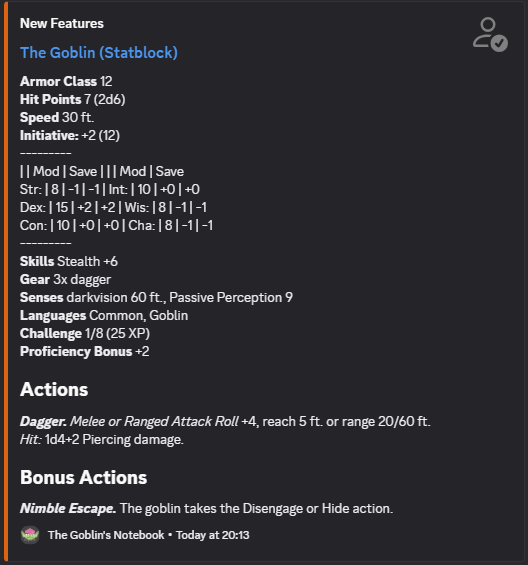
Send statblock
Available when the object has a custom statblock.
Dice rolls
When the feature is snabled, the dice roller shows some integration options. If you have FoundryVTT enabled, this is appears in the same place and you can switch between the views click clicking the FoundryVTT or Discord icons.
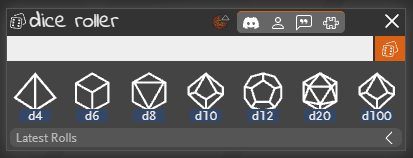
 | Enable to disable the dice roller integrations. Disabling stops any rolls from being sent. |
 | Shows/hides the object name from appearing in Discord. |
 | Shows/hides the dice roll label in Discord. |
 | Shows/hides the dice notation and modifiers in Discord. |
FoundryVTT and Discord dice integration can both be enabled at the same time and dice rolls will be sent to both.
Creating Discord webhooks
To create a webhook in your Discord server, choose or create a channel to receive the messages then follow these steps
- Edit channel
- Click Integrations on the left-hand side
- Click Webhooks
- Click the New Webhook button
- Give it a name. This is the user that the message is posted in Discord as, and a profile picture if you want
- Make sure the channel is set to the one you want to receive messages
- Copy Webhook URL and paste it into the Discord integration settings in your campaign
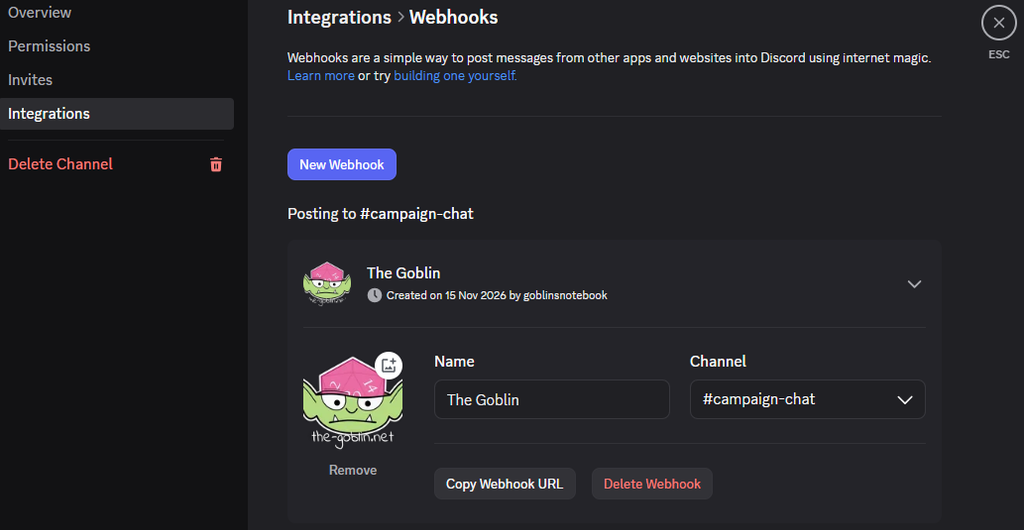
You can copy the webhook URL at any time after creating if by editing it and clicking the Copy Webhook URL button again. And remove it with the Delete Webhook button after which a new webhook needs to be created to enable this feature again.