Note: This is currently Goblin Lab functionality. It is fully usable but may see changes based on feedback and usage.
You can connect your own storage provider to enable quick uploading and embedding of images directly into your markdown notes.
This feature allows you to store images in your own cloud storage, giving you full control over storage, access, and costs. You will need familiarity with cloud providers, either S3 or Azure Blob.
To upload and embed images, either drag or paste the file into the markdown editor to the position you want the image to appear. You can copy images from your local machine as files or from other applications such as image editing software or web browsers.
Supported Providers
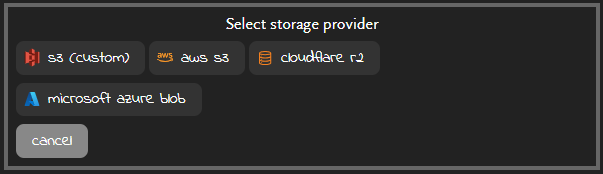
The following storage providers are currently supported
S3-compatible
- Amazon S3
- Cloudflare R2
- Other S3-compatible providers (via the custom S3 option)
Azure Blob
- Microsoft Azure Storage Accounts (Blob Storage)
Configuration
To get started
Add a new storage provider and select the type required
Enter the required configuration details
Some fields are required, while others are optional. Certain fields must match a specific format to be accepted.
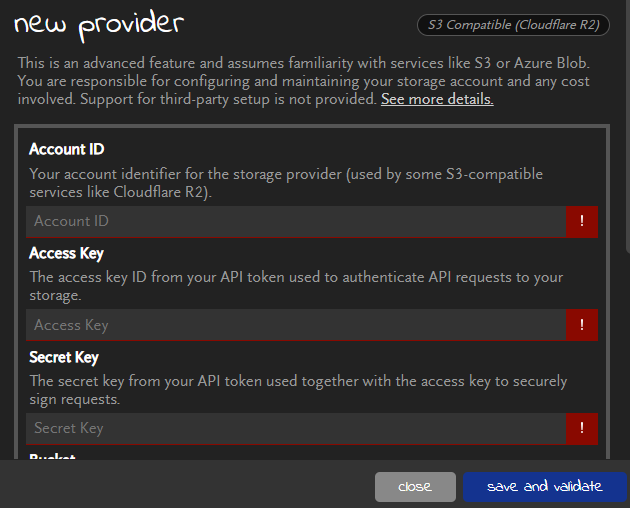
Use Random File Naming will append a random string of characters the end of the filename – or in the case of copying an image from an application where the filenames are often things like image.png, it will use a completely random file name. This helps to avoid accidental overwriting as each upload will have a unique name.
Save the provider
You will not be able to save a provider if the configuration is invalid.
Validating
When you save a provider, it is automatically validated.
Validation checks that
- authentication is working
- the storage service is reachable
- basic configuration is correct
Validation does not guarantee uploads will succeed, as other factors (such as permissions, CORS, or provider-specific settings) may still prevent uploads.
You can see whether or not a provider is validated from the provider list. If the provider type is in green with a check then it is validated

Otherwise it is not validated

Defaults
There are two default options that can be set from the provider list. The main default applies to your uploads and is set via the star button.
Allow contributors to upload images
If your campaign is shared and has one or more contribution roles defined, you can allow contributors to upload images to a provider by selecting the contributor default.
You can use the same provider as your main default or a different one for a different host or path. Or you can disable contributor uploads by removing the contributor default.
Settings you will need to set on your provider
Important: You are responsible for setting up and managing your storage provider, including any associated costs. The Goblin does not provide support for third-party storage configuration.
While setup varies by provider, most configurations require some of the following settings
API Key
An API key and secret key with appropriate permissions to upload/write files. Exact requirement vary by provider.
Public Access
The storage needs to allow public access so that the files can be embedded from The Goblin’s Notebook.
CORS
You need to set Cross-Origin Resource Sharing settings to allow connections to be made from The Goblin’s Notebook. This is an example that you may be able to paste into your provider settings, though it doesn’t necessarily include the minimum permissions required.
[
  {
    "AllowedOrigins": [
      "https://www.the-goblin.net"
    ],
    "AllowedMethods": [
      "GET",
      "PUT"
    ],
    "AllowedHeaders": [
      "*"
    ]
  }
]
Uploading images
To upload an image, drag the file from your local computer file browser into the markdown editor and it will upload the file and add the image to your markdown. If you have more than one provider, you need to specify a default.
Notes
You need to have the markdown editor enabled to upload images, the basic text editor does not support this functionality.