Column resizing on touch-screen devices has been fixed and should work pro..
Author : thegoblin
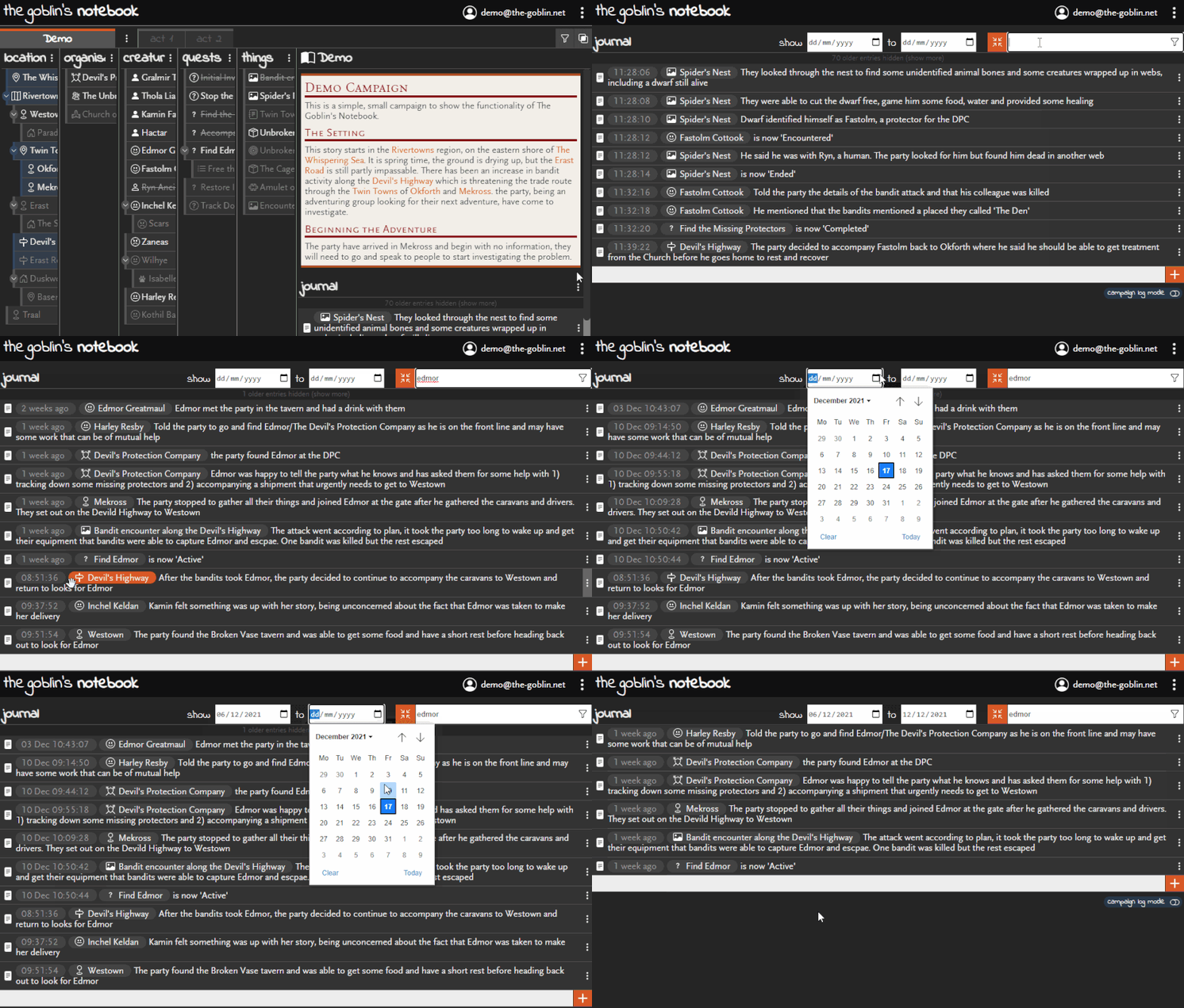
You can now expand the journal to fill the entire window. Just click the expand button in the popout menu to expand the panel (and press is again to go back again). When in full-screen mode, you can filter journal entries by date as well as text (text search is also available out of full-screen ..
To use images in your markdown, they first need to be hosted on the internet somewhere The Goblin currently doesn’t offer any file hosting capability but there are plenty of options out there already. Using an image already on the web You can use most images that you find online by simply right clicking them ..
There is a custom markdown syntax option to link directly to other objects. You can manually type the markdown syntax or the much easier approach, when in edit mode simply click another object and the markdown syntax will be added for you. When clicking an object, the (optional) custom label will be left blank. Syntax @[custom label](objectid) ..
Recent changes to Google Drive has made hosting images on the platform unreliable and is broken for some users and/or images. The Goblin not longer recommends hosting images on Google Drive. Images can be embedded directly from Google Drive. You need to copy the link from the google drive interface and make some changes to ..
How do I subscribe? The Goblin’s subscriptions are handled by Patreon. To subscribe, you need a Patreon account, to join The Goblin’s Patreon campaign, and link your Patreon account to the The Goblin’s Notebook. Why Patreon? Patreon handles all the user data and billing so The Goblin doesn’t have to, ensuring that you get a robust ..
Go to https://imgbb.com/ Drag your file into the window (or click ‘start uploading’ and choose your file) The page will change to show your file Press the ‘upload’ button The page will change to show your image is uploaded The URL in the address bar isn’t the one you need, neither is the one in ..
What is markdown? Markdown is a lightweight markup language that you can use to add formatting elements to plaintext text documents. Using Markdown is different than using a WYSIWYG editor. In an application like Microsoft Word, you click buttons to format words and phrases, and the changes are visible immediately. Markdown isn’t like that. When ..
Firstly, check that you have linked the accounts together with the steps on the here. I subscribed through Patreon, linked the account in the Notebook but it is not showing as subscribed Did you subscribe on or near the 1st of the month? Due to Patreon renewing subscriptions within the first couple of days of ..
If you have any suggestions for new features and a way to improve functionality, please contact [email protected] or through discord. We are always looking for ways to improve the Notebook and are happy to receive suggestions. We can’t say when (or even if) your suggestion may make it into the product but if it can be added and ..