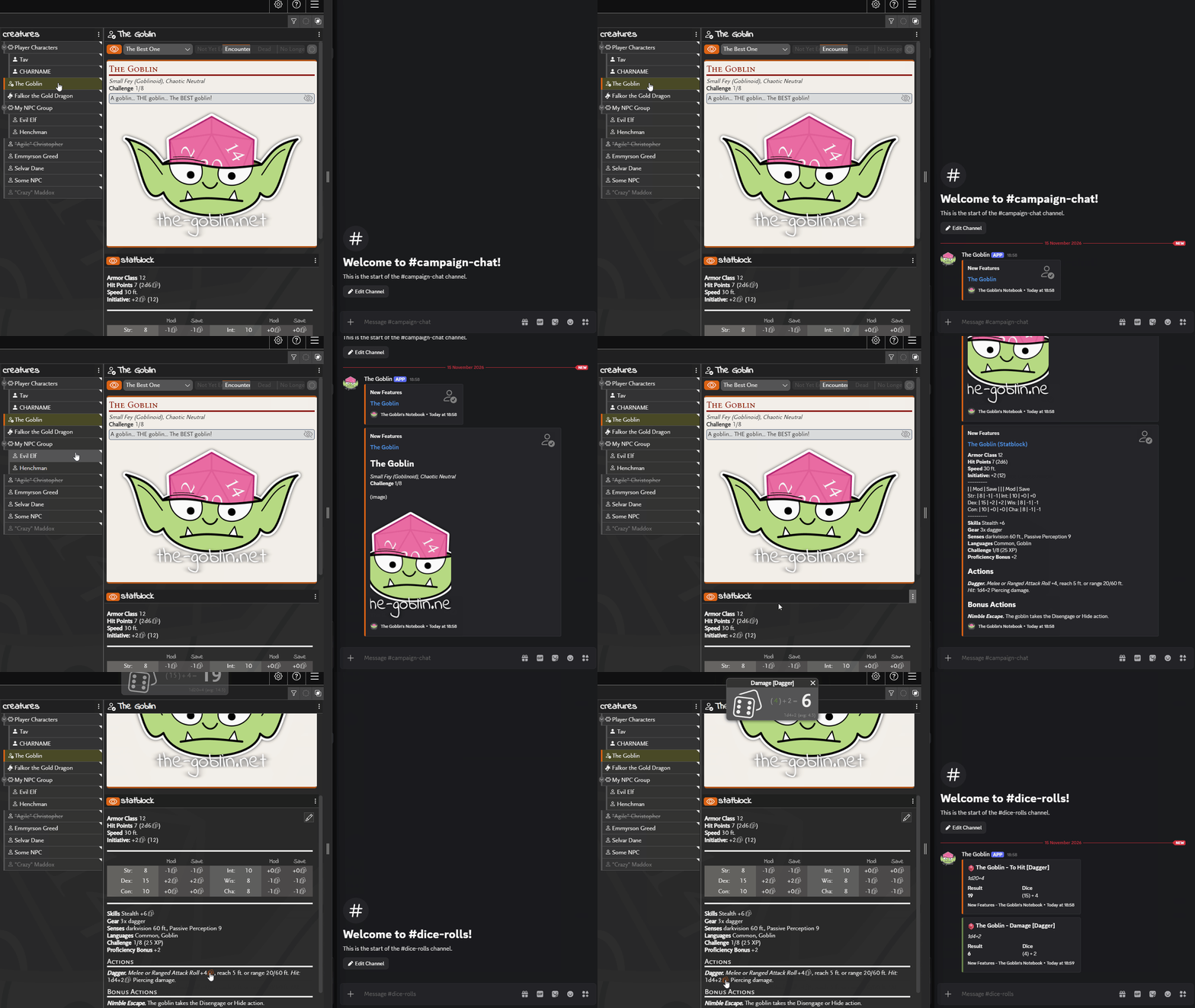
You can now easily send links, objects, statblocks, and dice rolls to discord.
To enable this, go to the lab settings and enable the feature and add your webhook URLs. For more information this, see Experimental Feature: Discord Integration.
Send objects
There are a few options available when it comes to sending objects to Discord which appear under the Send to… menu item. Copy direct link has also moved here.
Send direct link
Available for objects that are shared. Sends a small card with a direct link to the object.

Send object
Sends the main notes content along with a link to the object.
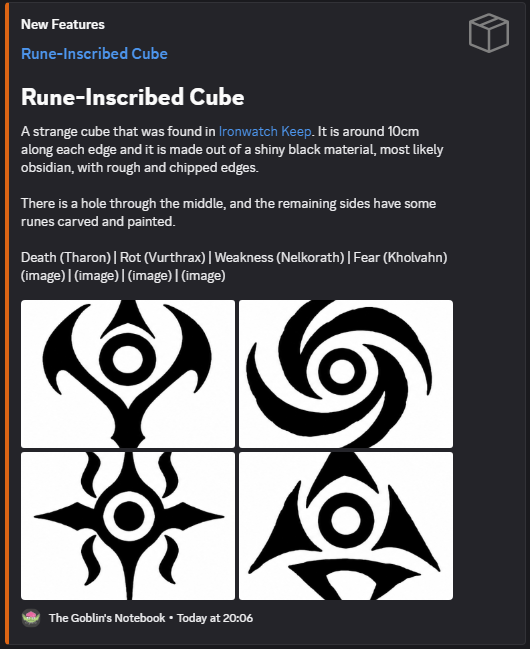
Note that although Discord also supports Markdown, their implementation is different from The Goblin’s Notebook so there may be formatting differences between your notes and how they appear in Discord.
Hidden notes sections will not be sent to Discord and object references will be turned into direct links if the object is shared, otherwise it will just show as plain text.
Up to 9 images will be attached to the message and their position will be marked with the text “(image)”. Discord limits messages to 2000 characters so objects with longer notes will be truncated.
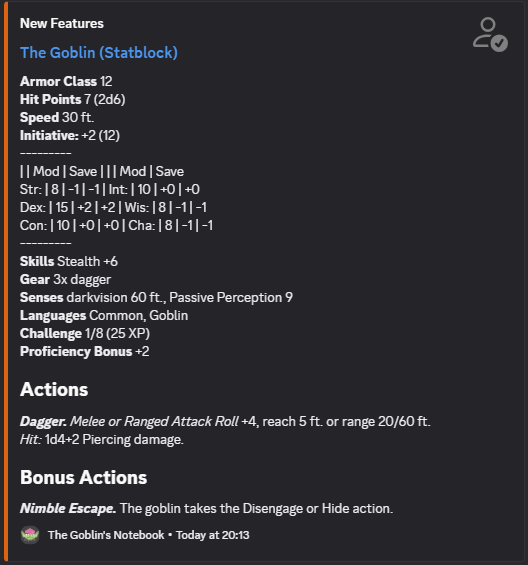
Send statblock
Available when the object has a custom statblock.
Dice rolls
When the feature is snabled, the dice roller shows some integration options. If you have FoundryVTT enabled, this is appears in the same place and you can switch between the views click clicking the FoundryVTT or Discord icons.
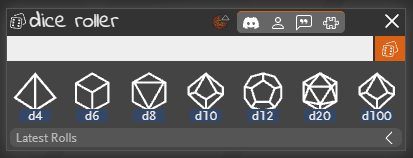
 | Enable to disable the dice roller integrations. Disabling stops any rolls from being sent. |
 | Shows/hides the object name from appearing in Discord. |
 | Shows/hides the dice roll label in Discord. |
 | Shows/hides the dice notation and modifiers in Discord. |
FoundryVTT and Discord dice integration can both be enabled at the same time and dice rolls will be sent to both.